
ELabELN Quick Start Guide
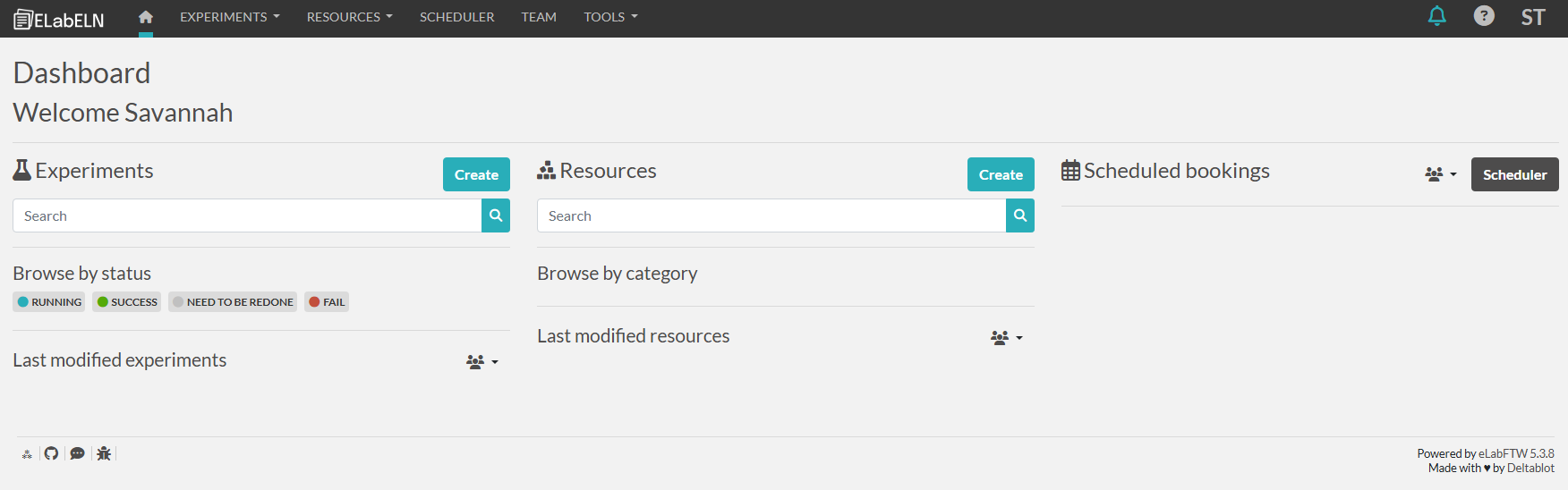
When you log into your ELabELN the first time, you'll see your dashboard, ready for set up:
Dashboard & Menu Overview
To give you an idea of where to find relevant screens, here is a summary of the dashboard and menu items:
- Experiments
- Under experiments, you can start with setting up categories, statuses, and templates as needed.
- Resources
- Under resources, you can start with setting up categories, statuses, and templates as needed.
- Scheduler
- Once you set up resources with the appropriate booking permissions, you can use the scheduler to see a calendar view of scheduled resource bookings.
- Team
- This shows you an overview of users in your team .
- Notifications
- Notifications show up by turning this bell icon blue. Notifications settings are under "Settings" in the user menu.
- Help
- Clicking the ? Button will open up multiple options for documentation and help.
- User Menu
- Under the user menu, accessed by clicking on your name initials in the top right corner, you will find additional set up options in the settings, admin panel, and sysadmin panel, if you have the appropriate permissions.
First Steps
These steps will get you started using the ELabELN in a way that is relevant to your lab.
Keep in mind that you can do as many or as few of these steps as you want - you can start using the ELabELN as is!
- Add experiment categories
- Edit experiment statuses
- There are statuses preloaded so you can use those if you prefer.
- Add resource categories
- Add resource statuses
- Add an experiment template
- Experiment templates can be used to standardize and streamline the way you manage experiments. Templates include a main text area, extra fields, file uploads, steps, related experiments and resources, related compounds, storage containers, and more.
ExperimentTemplate Library- You can also go straight into creating experiments from a blank template, if you prefer.
- Add resource template(s)
- Resource templates an be used to standardize and streamline the way you document resources. Templates include a main text area, extra fields, file uploads, steps, related experiments and resources, related compounds, storage containers, and more.
ResourceTemplate Library- You can also go straight into creating resources from a blank template, if you prefer.
- Create any resources that you need prior to logging experiments
Now you are ready to start creating experiments and scheduling resources!