
3. Getting Started
This section provides guidance for connecting PowerBI to ELabLIMS via the SciForge GraphQL API, including prerequisites, authentication, and best practices for secure and efficient data access.
Prerequisites
·Access to an ELabLIMS instance with SciForge enabled·- User account with appropriate permissions
· - Application Key generated in ELabLIMS for API access
· - PowerBI Desktop installed
o
Setting Up Application Keys in ELabLIMS
Application Keys are managed within the ELabLIMS user interface. Each user can generate and manage their own keys, which are required to authenticate with the SciForge API. The key is used to obtain a JWT (JSON Web Token) for secure API access.
Steps:
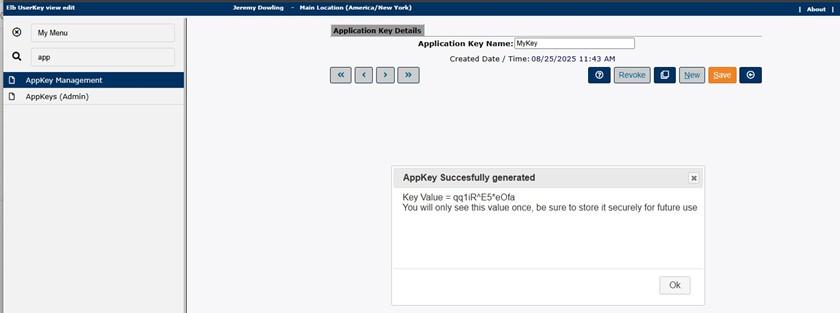
1.Log in to ELabLIMS.2.Navigate to the Application Keys management section.3.Generate a new Application Key. The key will only be shown once.4.- Store the key securely.
See screenshot below: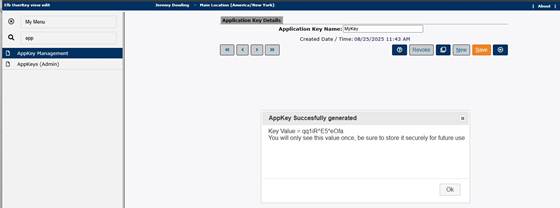
Accessing SciForge Endpoints in PowerBI
Setting Up PowerBI Credentials for Secure Access
To support centralized, service-account-based authentication and scheduled refreshes, it is recommended to use Power Query parameters for the Application Key and Username rather than relying on PowerBI’s credential store. This approach is suitable for both PowerBI Desktop and PowerBI Service deployments.
How to set up parameters:
1.In Power Query, go to Manage Parameters and then New Parameter.2.Create parameters for the Application Key (e.g., appKeyParam) and Username (e.g., usernameParam).3.- Enter the values for these parameters.
4. - Reference these parameters in the M code as shown below.
Example: Authenticating and Retrieving a JWT
// Function to retrieve a fresh JWT using SciForge's LoginAppKeyJWT
// mutation and Power Query parameters
let
    getJwt =
        let
            apiUrl = "https://your-instance.sciforge.net/graphql",
            appKey = appKeyParam,
            username = usernameParam,
            authBody = Json.FromValue([
                query = "mutation {LoginAppKeyJWT}"
            ]),
            authResponse = Web.Contents(apiUrl, [
                Content = authBody,
                Headers = [
                    #"Content-Type" = "application/json",
                    #"elab-key-auth" = appKey,
                    #"elab-user-name" = username
                ]
            ]),
            authJson = Json.Document(authResponse),
            jwt = authJson[data][LoginAppKeyJWT]
        in
            jwt
in
    getJwt
Using the JWT to Query Data
To query data, the getJwt function is called directly in the query step. For example, to retrieve a custom picklist using the getCustomPkl query, the JWT is used in the x-auth-token header:
let
    apiUrl = "https://your-instance.sciforge.net/graphql",
    jwt = getJwt(appKeyParam, usernameParam), // Always retrieves a fresh JWT
    queryBody = Json.FromValue([
        query = "query { getCustomPkl(data:{PickListType:-1}) { PickListType PickListCode PickListDesc PickListValue } }"
    ]),
    response = Web.Contents(apiUrl, [
        Content = queryBody,
        Headers = [
            #"Content-Type" = "application/json",
            #"x-auth-token" = jwt
        ]
    ]),
    result = Json.Document(response)
in
    result
Setting Up a New PowerBI Report
1.Open PowerBI Desktop.2.Select Get Data and then Blank Query.3.Use the Power Query editor to add authentication and data retrieval steps as shown above.4.Parameterize data such as the Application Key and JWT retrieval or the API URL.5.- Build the data model and visualizations using the imported data.
Security and Query Caching Considerations
Avoid Hardcoding: Use Power Query parameters.
JWT Expiry and Query Caching: JWTs are time-limited and may expire between refreshes. PowerBI can cache query results, which risks reusing expired tokens if the authentication step is not dynamically invoked. By encapsulating JWT retrieval in a function (see getJwt above, which uses the correct SciForge mutation and headers) and calling it directly in the query step, a fresh, valid JWT is obtained for every query, regardless of PowerBI’s caching behavior. This pattern prevents issues with expired tokens and supports secure, reliable data access.
Least Privilege: Access to Application Keys should be strictly limited to users who require them for their role or integration tasks. Keys should not be shared or exposed to unnecessary personnel. The use of service accounts is recommended.
Adoption of these patterns and best practices enables laboratories to securely and efficiently connect PowerBI to ELabLIMS via SciForge, supporting reliable authentication and up-to-date data access.